
Create On-the-Fly Shop Drawings
Today AutoQuote library of shop drawings is available for over 1 million product numbers, but we understand that we still cannot keep up. To simplify and speed up the shop drawing process, use the new Shop Drawing Annotation feature. With this feature, if a shop drawing is missing, simply upload the manufacturer spec sheet and mark it up within AutoQuote.
Here is a step-by-step guide on how to mark up and create a shop drawing on the fly:
1. Start the Process: Click the ‘download Shop Drawing Button’ from any Quote Detail page.
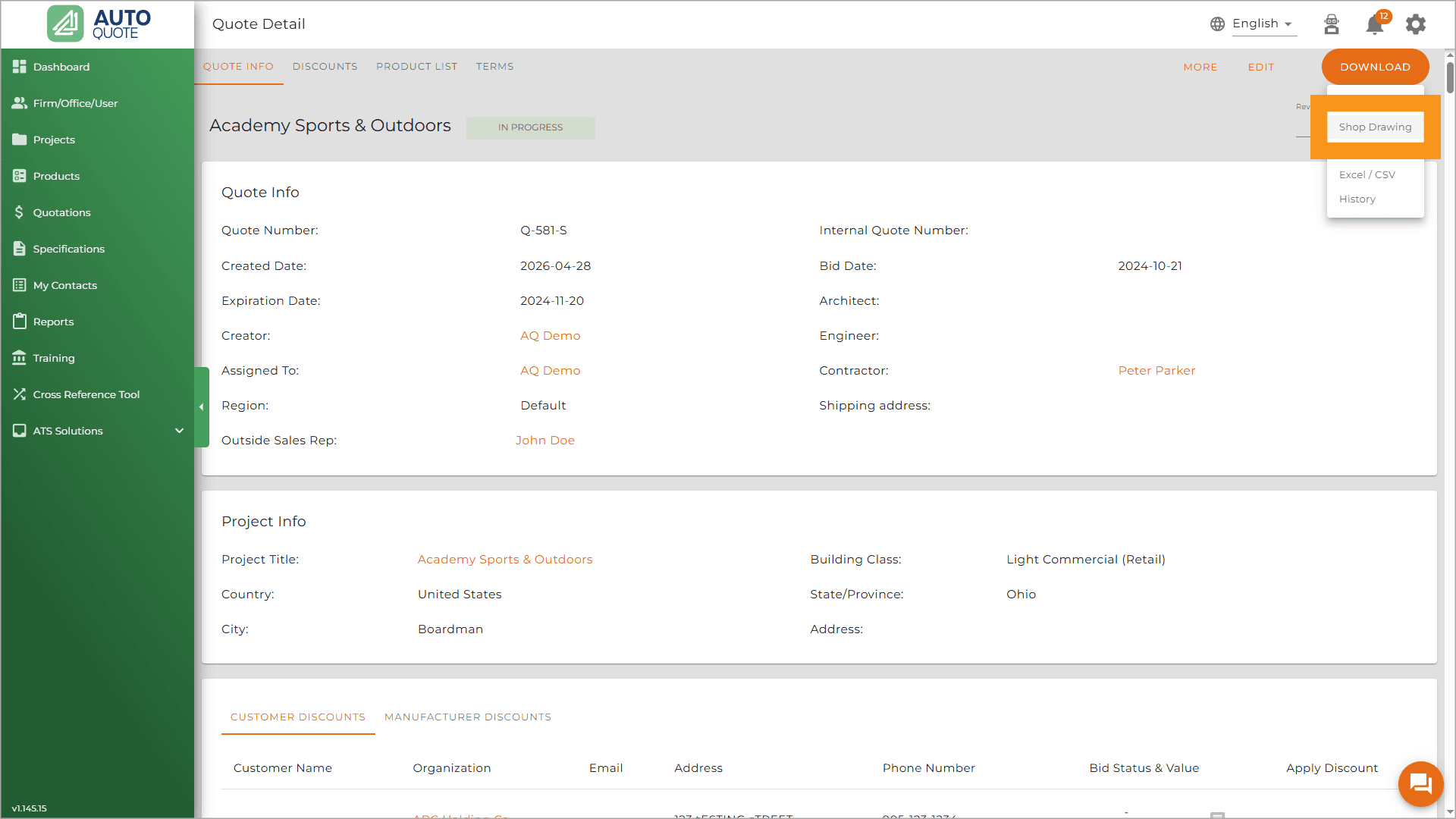
2. Locate the Selection Section: Scroll down to the section where you choose which products to modify the shop drawing.
3. Apply Filters: Click the toggle buttons for ‘only show products without shop drawing’ and ‘If no shop drawing, fallback to product spec sheet.’

4. Access Creation Tool: The ‘Create Shop Drawing’ button will populate.
5. Get the Spec Sheet: If AutoQuote has the spec sheet, you can start annotating the PDF. If not, you will need to download the spec sheet from the manufacturer’s website and click the ‘+’ button to upload it.
6. Annotate: Use the built-in functions- Undo, Highlight, Shapes, Symbols, Add Text, Strikethrough text, Underline Text, Delete Current Page, Download, Save Shop Drawing to Product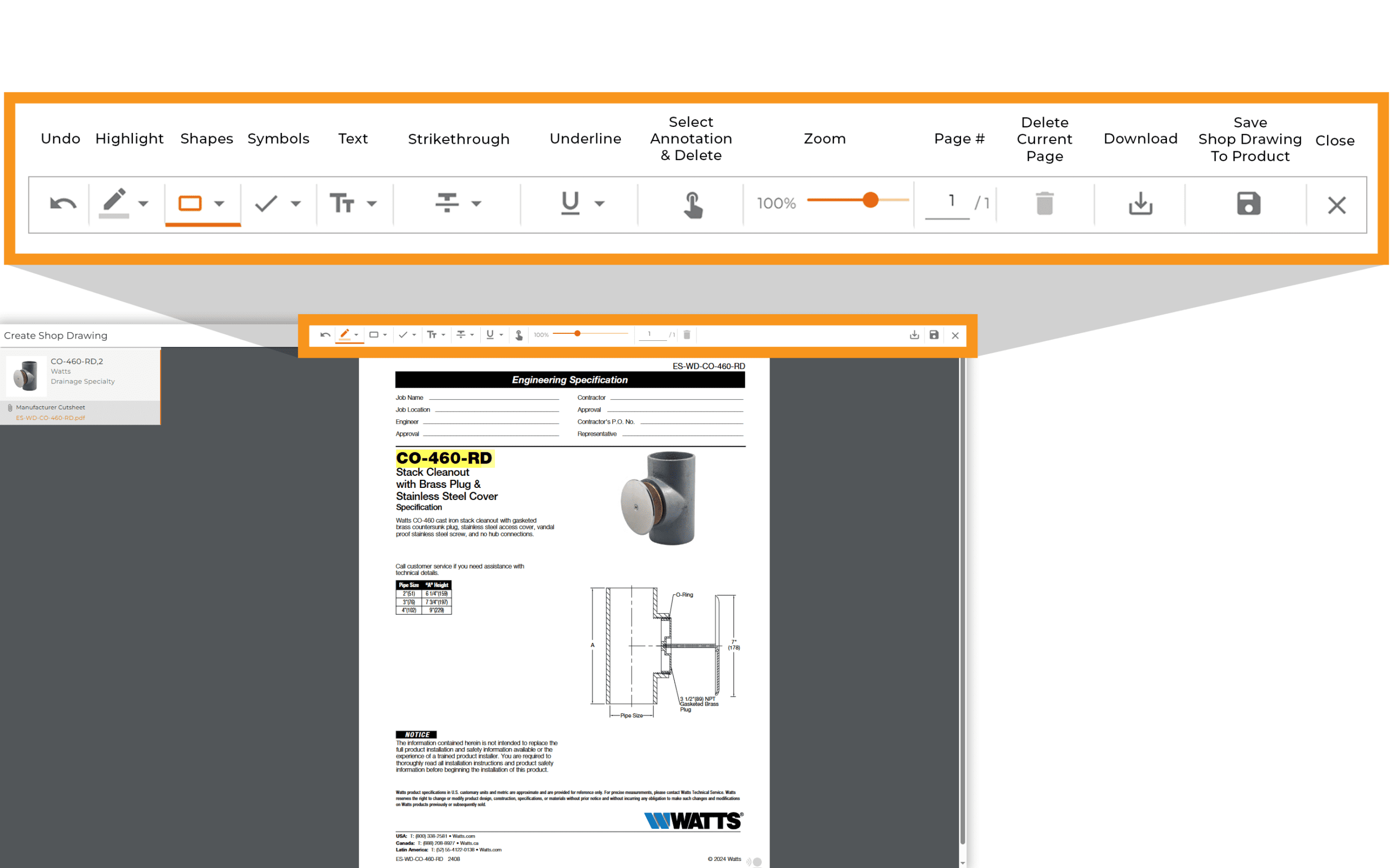
7. Save or Download: Once annotation is complete, choose to download the shop drawing or save it to your account for future use.
For access to this feature, reach out to your customer success representative.